NetherSX2 Games – Download Compatible Ps2 Title
NetherSX2 Games – Download Compatible Ps2 Title
NetherSX2 Game Compatibility
NetherSX2 is built on the PCSX2 core and runs roughly 90–95% of the PlayStation 2 library. How well a specific title runs depends on your phone’s CPU and GPU (Adreno chips generally perform best), a valid BIOS matching the game’s region, and the right settings.
Excellent = stable full speed on most devices · Good = playable, benefits from settings tweaks · Playable = runs with noticeable glitches on demanding scenes.
| Game | Compatibility | Notes |
|---|---|---|
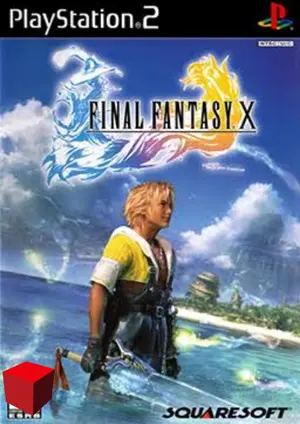
| Final Fantasy X | Excellent | Stable FPS and clear audio — a showcase title |
| Tekken 5 | Excellent | Smooth on most devices; superb with a controller |
| Resident Evil 4 | Excellent | Stable with default settings |
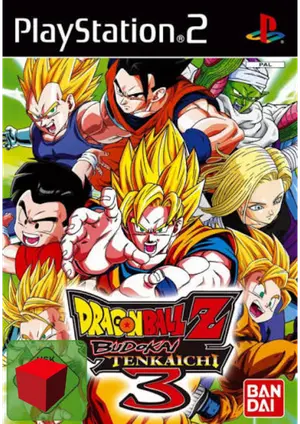
| Dragon Ball Z: Budokai Tenkaichi 3 | Excellent | Great performance across devices |
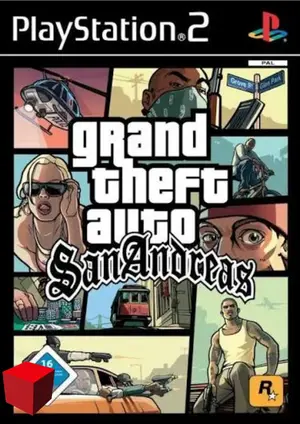
| GTA San Andreas | Excellent | Recent builds include game-specific fixes |
| God of War II | Good | Demanding — lower internal resolution on mid-range phones |
| God of War I | Good | Runs well; heavy scenes need 1x resolution |
| Shadow of the Colossus | Good | Drop internal resolution to hold a stable 30 FPS |
| Metal Gear Solid 3: Subsistence | Good | Build 4248 includes specific fixes for this title |
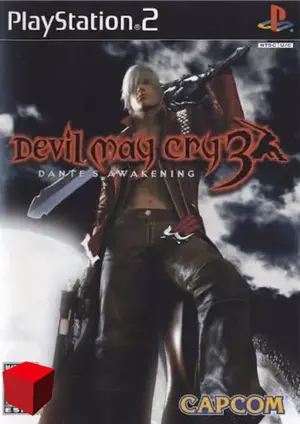
| Devil May Cry 3 | Good | Tested smooth on flagships; tweak on older phones |
| Kingdom Hearts | Good | Solid performance; rare slowdowns fixed with tweaks |
| Bully | Good | Stable with default settings on mid-range and up |
| Persona 4 | Playable | May show minor graphical glitches |
| Silent Hill 3 | Playable | Can carry noticeable glitches on some devices |
Legal note: only play games you own — dump your game discs to files from your own PlayStation 2 collection.
Best PS2 Games to Play on NetherSX2
The most popular and best-tested titles in the NetherSX2 community — each with its genre, compatibility rating and a settings tip so you get the best experience from the first launch.
God of War II
Genre: Action
Compatibility: Good
Settings tip: Drop internal resolution to 1x and enable EE underclock on mid-range phones.
GTA San Andreas
Genre: Open World
Compatibility: Excellent
Settings tip: Game-specific fixes are built in — default settings work great.
Resident Evil 4
Genre: Horror Action
Compatibility: Excellent
Settings tip: Stable FPS everywhere; 2x upscaling looks fantastic on flagships.
Final Fantasy X
Genre: RPG
Compatibility: Excellent
Settings tip: A showcase title; enable the widescreen patch for modern phone displays.
Tekken 5
Genre: Fighting
Compatibility: Excellent
Settings tip: Rock-solid frame pacing; pairs perfectly with a Bluetooth controller.
Shadow of the Colossus
Genre: Adventure
Compatibility: Good
Settings tip: Keep 1x resolution and enable frame skip for a stable 30 FPS.
DBZ Budokai Tenkaichi 3
Genre: Fighting
Compatibility: Excellent
Settings tip: Fast and flashy; the Vulkan renderer gives the smoothest fights.
Devil May Cry 3
Genre: Action
Compatibility: Good
Settings tip: Buttery on flagships; lower the resolution a notch on older phones.
NFS: Most Wanted
Genre: Racing
Compatibility: Excellent
Settings tip: Great sense of speed and stable performance on most devices.
Kingdom Hearts
Genre: Action RPG
Compatibility: Good
Settings tip: Charming and smooth; small tweaks clear up rare slowdowns.
Metal Gear Solid 3
Genre: Stealth
Compatibility: Good
Settings tip: Play the Subsistence version — build 4248 carries specific fixes for it.
Bully
Genre: Open World
Compatibility: Good
Settings tip: Rockstar’s schoolyard classic; stable on mid-range phones and up.
NetherSX2 Supported Game File Types
NetherSX2 reads your dumped PS2 games directly — no conversion needed in most cases.
ISO
The most common and recommended format. Directly readable with excellent compatibility and performance — if in doubt, use ISO.
CHD
Compressed Hunks of Data. Lossless compression that shrinks game files to save storage space while keeping full quality and content.
BIN / CUE
Classic disc image format. The BIN file must be paired with its matching CUE file to load correctly in the emulator.
Recommendation: ISO for the simplest setup, CHD when phone storage is tight.
How to Add Games in NetherSX2
From a fresh install to playing in six steps:
- Install NetherSX2 — grab the Patch or Classic build and install the APK.
- Import your BIOS — dump the BIOS from your own PS2 console; it must match your games’ region (USA, Europe or Japan).
- Prepare your game files — dump the game discs you own to ISO or CHD format from your own collection.
- Add your games folder — place the files in a folder on your phone, then point the emulator’s game list at it in Settings.
- Apply the right settings — use the presets below, or create a per-game profile for demanding titles.
- Play — connect a Bluetooth controller for the full console feel, or use the on-screen controls.
Suggested Settings for Smoother Gameplay
Start from the preset that matches your phone, then fine-tune per game.
Flagship Phones
Vulkan renderer · 2x–3x upscaling · FXAA on · multi-threaded VU enabled. Push God of War II to its limits.
Mid-Range Phones
Vulkan renderer · 1x–2x upscaling · VSync off · per-game profiles for heavy titles. The sweet spot for most players.
Low-End Phones
Vulkan renderer · 1x (or 0.75x) resolution · frame skip on · EE underclock -1/-2 · close background apps · disable experimental patches.
Pro tip: NetherSX2 supports per-game settings — configure graphics, speed and compatibility options separately for each title instead of changing your global setup. Enable frame limiting to avoid speed-up glitches in older PS2 games.
Most Common NetherSX2 Game Issues — and Fixes
Match your symptom, check the cause, apply the fix:
Black Screen on Launch
Cause: BIOS version or region mismatch, or a corrupted game file.
Fix: Use a BIOS matching your game’s region and verify your dumped file isn’t corrupted; try a different NetherSX2 build.
Lag or Low FPS
Cause: Settings too demanding for your device, or background apps eating CPU.
Fix: Lower internal resolution to 1x, switch to Vulkan, enable frame skip, close background apps, and disable experimental patches.
Graphical Glitches
Cause: Renderer or accuracy settings mismatching what the game expects.
Fix: Switch between Vulkan and OpenGL, adjust Blending Accuracy, or enable the game’s specific fix in its per-game settings.
💥 Crashes or Freezes
Cause: Unstable build or incompatible global settings.
Fix: Try the other build (Patch vs Classic), clear the app cache, and test with per-game settings instead of global ones.
🎮 Controller Not Working
Cause: Input profile misconfigured inside the emulator.
Fix: Reconfigure the input bindings in NetherSX2 settings, and pair your Bluetooth controller before launching the game.
🧩 Cheats (PNACH) Not Loading
Cause: Wrong serial number or bad file formatting.
Fix: Verify the game’s CRC in the emulator and make sure the PNACH filename matches the game’s serial exactly.