
NETHERSX2 Cover Download – 2D & 3D
PS2 Cover Downloader
Search your favorite PlayStation 2 game and download its 2D or 3D cover.
What is Nethersx2 Cover?
A NetherSX2 cover is the box-art image of a PlayStation 2 game that appears in your NetherSX2 game library. It helps you visually identify your games instead of seeing generic icons or blank spaces.
The NetherSX2 Cover Downloader lets you search for a game, select its region (USA, Europe, or Japan), choose a 2D or 3D cover, and download the matching artwork so you can add it to your emulator. It is purely a visual customization feature; it does not change the game files, improve performance, or affect gameplay.
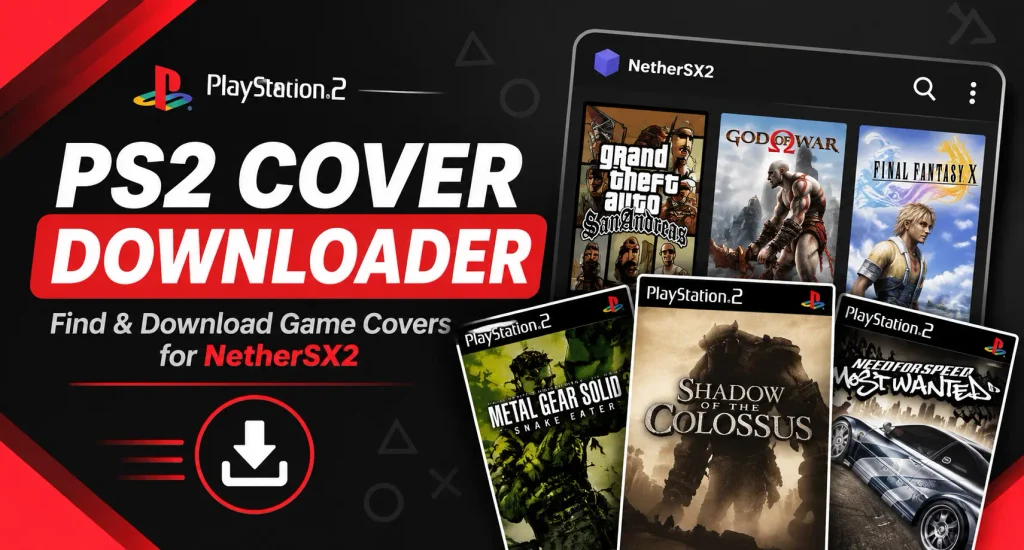
types of Nethersx2 game covers
NetherSX2 Cover Downloader supports two main types of game covers:
2D Covers
Flat front-facing game artwork, similar to the original PS2 game cover. These are ideal for a clean, simple game library.
3D Covers
Three-dimensional box-style artwork that makes the game look like a physical PS2 game case. These give your library a more realistic appearance.
NetherSX2 cover Import methods
You can add your own custom cover images to NetherSX2 in two straightforward ways. The second method lets you place image files directly into NetherSX2’s covers folder. Simply copy a JPG or PNG file into that folder and name it to match the game’s title or its serial number (for instance, “Minecraft.jpg” or “Minecraft (1234567890).png”). This approach is especially handy when you have many games and want to add covers for several titles at once, avoiding the need to import each image individually.
Manual import
Manual cover import in NetherSX2 means adding a custom game cover image yourself from your phone’s storage instead of letting NetherSX2 download or find the cover automatically.
For example, suppose you have God of War II in your NetherSX2 game library, but it doesn’t display a cover image.
You can manually add one:
- Download the God of War II cover image to your phone.
- Open NetherSX2.
- Find God of War II in your game library.
- Long-press the game.
- Select Choose Cover Image.
- Browse your phone’s storage and select the downloaded image.
- NetherSX2 will use that image as the game’s cover.
You don’t need to place the image in a special folder first. NetherSX2 lets you select it directly from your phone’s Gallery or File Manager.
import by Nethersx2 Cover URLs
The second method allows you to download game covers directly from the internet using a Cover URL.
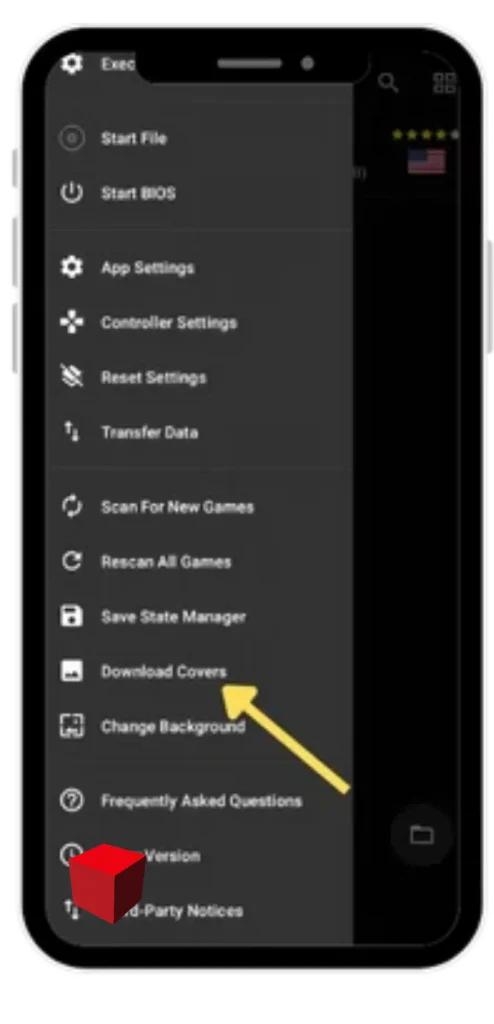
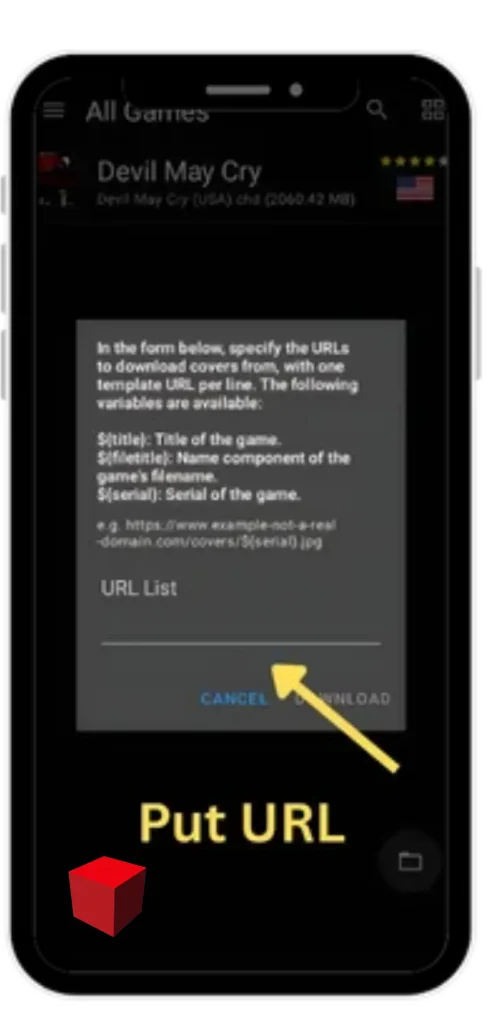
To use this method, open the left-side menu in NetherSX2 and select Download Covers. A popup will ask you to enter a URL template containing the ${serial} placeholder.
This placeholder automatically gets replaced with each game’s unique serial number, allowing NetherSX2 to find and download the matching cover image for every game in your library.
You don’t need to download or import images individually; simply enter the URL template and tap Download, and the emulator will fetch the available covers automatically
Nethersx2 2D Cover URL
https://raw.githubusercontent.com/xlenore/ps2-covers/main/covers/default/${serial}.jpg
Nethersx2 3D Cover URL
https://raw.githubusercontent.com/xlenore/ps2-covers/main/covers/3%20d/${serial}.png
How to download Nethersx2 Game covers
- Download the desired game cover in JPG or PNG format using your preferred method.
- Store it somewhere accessible on your Android device, such as the Downloads folder or a dedicated
/PS2 Covers/folder. - Launch the app and navigate to your Game Library.
- Long-press the game for which you want to add custom cover art.
- From the context menu, tap Choose Cover Image.
- Browse your device storage, locate the downloaded cover image, and select it.
- The cover art will appear in your NetherSX2 game library.
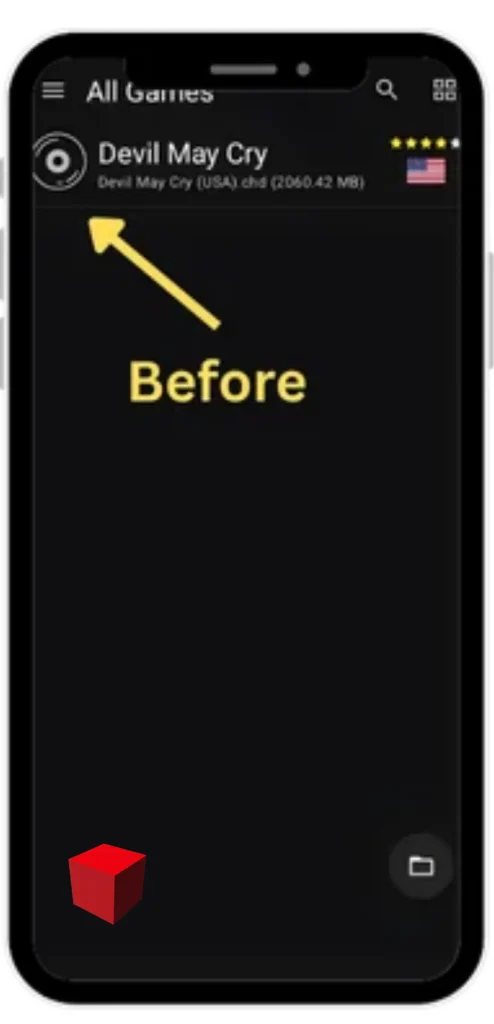
Common troubleshoot
When importing save data into NetherSX2 from PCSX2, AetherSX2, another Android phone, or an online source, you may encounter a few common problems. Most are caused by an incompatible file format, the wrong memory card, or a save that doesn’t match your game.
Cover Image Is Not Showing
- Make sure you selected the correct game before importing the cover.
- Check that the downloaded image opens correctly on your device.
- Try selecting the image again from your Downloads folder.
- Close and reopen NetherSX2 to check whether the cover appears.
If the image still does not show, try another JPG or PNG image.
Old Cover Image Keeps Coming Back
- Long-press the affected game and select Choose Cover Image again.
- Select the new image and check whether it replaces the previous one.
- If you use the covers-folder method, check that the correct image is stored in the appropriate folder.
- Remove any unwanted cover file only after confirming which file belongs to the affected game.
Avoid deleting the entire NetherSX2 application data folder, as it may contain important emulator settings and other data.
Cannot Access the NetherSX2 Covers Folder
Try a file manager that supports access to Android/data and allows you to grant the necessary folder permissions. Some users have also reported success with alternative file managers such as MT Manager.
Remember, you do not need to access the Android/data folder when using manual cover import. You can simply save your image in Downloads and select it through NetherSX2’s Choose Cover Image option.
Cover Downloader Is Not Working
- Check that your internet connection is working.
- Make sure the cover URL points to a valid image.
- Check that the game serial number matches the cover database entry.
- After entering a URL, press Enter or save the field if required by your app version.
- Check for a newer NetherSX2 build if the downloader continues to malfunction.
Some earlier NetherSX2 versions had documented cover downloader issues, so the problem may not always be caused by an incorrect URL.