NETHERSX2 SETTINGS – Best Performance guide On Low End Devices
Is your PS2 game lagging, dropping FPS, or overheating your phone while playing NetherSX2? The wrong settings can affect performance, but copying someone else’s configuration may not work on your device. In this guide, you’ll learn the best NetherSX2 settings for smoother gameplay, clearer graphics, and fewer performance issues, with practical adjustments for different Android phones and demanding PS2 games.
NetherSX2 Settings for Androids
The performance of Netjhersx2 depends on how well your phone can emulate PS2 hardware, how demanding the game is, and how you configure the emulator.
The most important thing to understand: a phone that runs one PS2 game smoothly may struggle with another. Performance can vary significantly between games, even on the same device.
Factors effecting Performance
Processor (CPU)
The CPU is one of the biggest performance factors. NetherSX2 must emulate the PS2’s processor while running the game’s logic.
- Faster CPU cores generally deliver better performance.
- Older or low-end processors may struggle with demanding games.
Graphics processor (GPU)
The GPU renders the game’s graphics.
- A stronger GPU can improve rendering speed.
- Adreno and Mali GPUs can behave differently depending on the game and graphics driver.
- Increasing the rendering resolution puts more work on the GPU.
RAM and available memory
Low available RAM can cause stutters or app closures.
- Background apps can consume memory.
- More RAM helps with multitasking, but does not automatically increase emulation speed.
Phone temperature and thermal throttling
A phone may run a game smoothly at first but slow down after 15–30 minutes.
- Heat can cause Android to reduce CPU and GPU speeds.
- Charging while gaming can add heat.
- Good ventilation and avoiding direct sunlight can help maintain performance.
Android power management
Battery saver and manufacturer-specific performance controls can limit CPU or GPU speeds.
- Battery-saving modes may reduce sustained performance.
- Background restrictions can affect the emulator.
- A performance mode may help on some phones, but can increase heat and battery drain.
Storage speed and available space
Storage can affect game loading, file access and some stuttering.
- Faster internal storage can reduce loading times.
- Slow or unreliable SD cards may cause delays when games are stored on them.
- Low free space can create broader Android performance problems.
Emulator setting That can impact Performance
Internal rendering resolution
Higher resolutions make games look sharper but require more graphics processing.
- Native resolution is usually a good starting point for weak phones.
- 2× resolution can improve image quality if the GPU has enough power.
- 3× or higher can significantly reduce speed on some devices.
Graphics driver compatibility
The graphics driver connects the emulator’s rendering commands to the phone’s GPU.
- Driver bugs can cause crashes, glitches or poor performance.
- Compatible Vulkan drivers can improve results in some configurations.
- Turnip drivers are designed for supported Qualcomm Adreno GPUs; they are not universal drivers for Mali GPUs.
Best Settings For low End devices
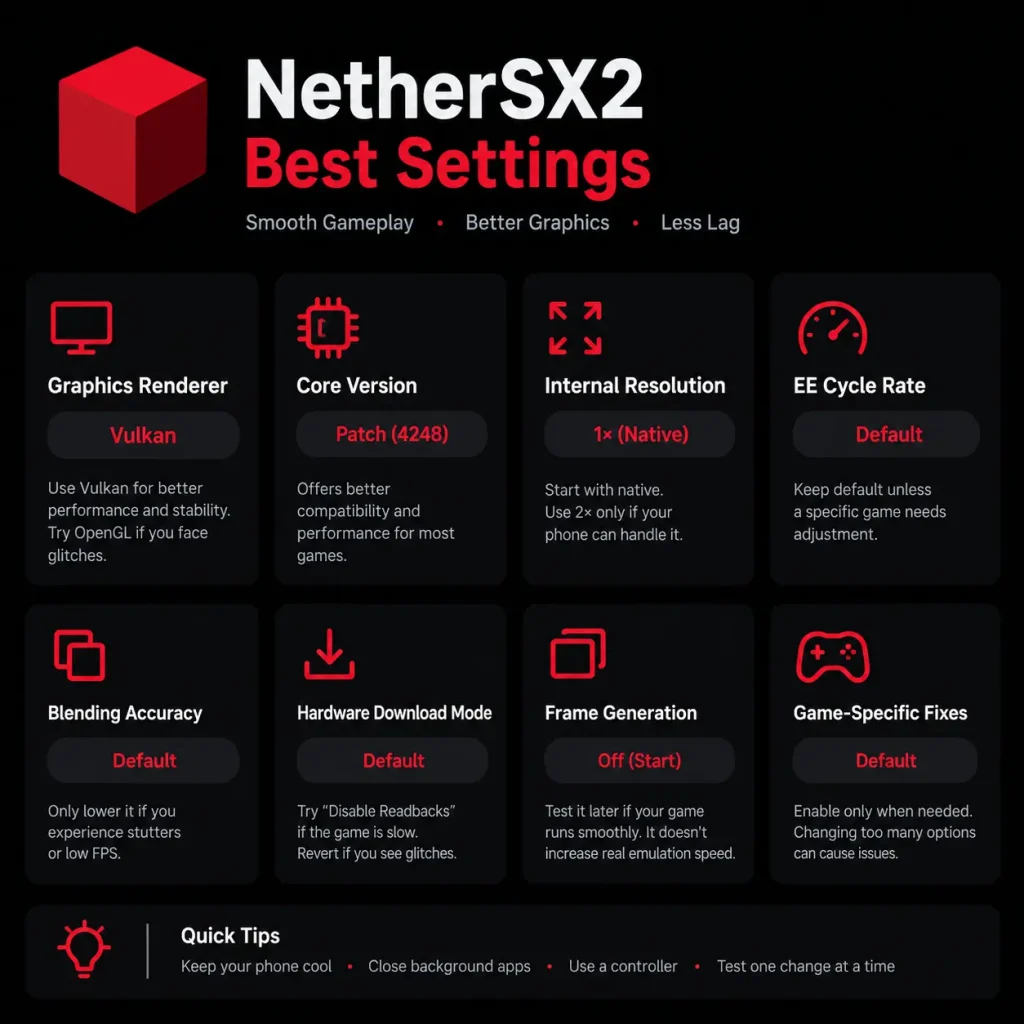
If you have a low-end Android phone, the best way to improve NetherSX2 performance is to reduce graphics load, choose compatible settings, and avoid overheating. You won’t be able to make every PS2 game run smoothly, but these steps can help.
internal resolution tweaks
I’d recommend this as your first step because higher resolutions put extra pressure on your phone’s GPU. The graphics might look a little less sharp, but smoother gameplay is usually worth that trade-off on a low-end device.
graphics renderer
NetherSX2 generally offers both Vulkan and OpenGL. Try Vulkan first, then switch to OpenGL if you experience lag, crashes, or graphical glitches.
phone’s memory and temperature
Before launching a game, close unnecessary background apps and make sure you have some free storage space. Battery Saver can also limit performance, so check whether it is enabled.
Recommended advanced settings
Options such as EE Cycle Rate, EE Cycle Skip, and hardware download modes can sometimes help specific games, but changing them randomly may cause glitches, broken timing, or worse performance. Start with the basic graphics adjustments and only experiment with advanced settings when a particular game still struggles.
Finally, remember that every PS2 game has different performance requirements. A game that runs smoothly on your phone might be much harder to emulate than another. Test your settings with the actual game you want to play, and make one change at a time. If a demanding game still runs slowly at native resolution, your phone may simply lack the processing power needed to run it at full speed.
Best NetherSX2 Settings by Chipset
Your GPU matters as much as your CPU. Here is how to approach the most common phone types:
Snapdragon (Adreno)
Adreno phones usually give the best results. Use Patch (4248) with Vulkan. Mid-range chips should stay at 1x, while 8-series flagships can aim for 2x.
MediaTek & Mali Phones
Mali devices are more sensitive. Try Classic (3668) first, keep 1x resolution and lower Blending Accuracy. If you see glitches, test OpenGL.
Gaming Phones & Handhelds
Flagship hardware can handle 2x on many games. Enable your device’s performance mode, keep it cool and pair a controller for the best experience.
Want to try a different graphics driver? Download our NetherSX2 Turnip APK with the bundled Turnip driver if your device is compatible. It may improve performance in some games, but results vary by phone and game.
Best NetherSX2 Speed & System Settings
These control how hard the emulator works. They are the biggest lever for smooth gameplay on weaker phones.
EE Cycle Rate
100% is the default. Underclocking (75% or 60%) can speed up demanding games but may cause slowdowns or bugs. Overclocking (130% or 180%) only helps games that lag even on real hardware and needs a powerful phone.
EE Cycle Skip
Leave it disabled unless you need speed. Mild, then Moderate, can rescue CPU-heavy scenes but may cause freezes or glitches. Treat Maximum as a last resort.
MTVU (Multithreaded VU1)
Usually best left on, as it spreads VU1 work across another CPU core. If a game gets worse, turn it off and compare.
Fast CDVD
Turn it on for quicker loading. If a game hangs on loading screens or videos, switch it off for that title.
Fast Boot
Enable it under Settings → System to skip the PS2 startup logo and get into games faster.
Cheats & Patches
Enable these per game, not globally. Global cheats can slow down loading.
How to Apply the Best NetherSX2 Settings
- Install the right build — download Patch (4248) or Classic (3668) from the official GitHub releases or Nethersx2 Download page and install the APK.
- Import your Ps2 BIOS — dump it from your own PS2; the region should match your games.
- Set your global defaults — open Settings → Graphics and Settings → System, then apply the preset for your phone from the table above.
- Create per-game profiles — open a game’s properties and override only what that game needs, so your global setup stays clean.
- Test and tweak one setting at a time — play a demanding scene for a few minutes, change one option, and compare.
Legal note: only play games you own — dump your discs from your own PlayStation 2 collection.
Best Settings For Nintendo Switch
The biggest difference is that NetherSX2 on Nintendo Switch needs settings tuned for the Switch’s hardware and its port, while Android settings are often tuned around the phone’s chipset and GPU drivers. You shouldn’t copy every Android performance tweak to the Switch.
For the Switch version, I’d start with the settings below and then test advanced options one at a time. The Switch port supports Vulkan (NVK), OpenGL, and Deko3D in newer build
test Deko3D vs Vulkan
Vulkan (NVK) is the recommended baseline. If your version includes Deko3D (Native), compare it in the same game and area. Keep whichever gives better sustained speed and fewer graphical glitches
Hardware Download Mode
Test this if the game runs slowly. It may improve performance, but some games can show missing effects or graphical errors. Restore the default if anything looks wrong
Internal resolution
Start at native resolution. Test 2× only after the game runs smoothly. Higher resolution improves sharpness but adds GPU workload.
LSFG frame generation
Newer Switch-port versions support LSFG 2× frame generation with Vulkan or Deko3D. It requires a separately supplied Lossless.dll and setup. Test it only after establishing stable base performance; generated frames do not make the underlying emulation run faster.
Common NetherSX2 Problems & Fixes
Lag & Slowdowns
Cause: CPU-heavy scenes overwhelm weaker chips.
Fix: Drop to 1x, use a 75% EE Cycle Rate or Mild EE Cycle Skip, close background apps and enable performance mode.
Black Screen or Crash
Cause: A renderer or driver problem, or a missing BIOS.
Fix: Switch between Vulkan and OpenGL, re-import your BIOS and check storage permissions.
Broken Shadows or Lighting
Cause: Blending Accuracy is set too low for the game.
Fix: Raise Blending Accuracy one step at a time and retest.
Lines or Seams at Higher Resolution
Cause: Upscaling artifacts at 2x or above.
Fix: Enable Manual Hardware Fixes and try Half Pixel Offset or Round Sprite, or go back to 1x.
Crackling Audio
Cause: The game is running below full speed.
Fix: Fix performance first using the lag steps above. Audio usually clears up once speed is stable.
Overheating & Throttling
Cause: Sustained heavy load makes the phone throttle.
Fix: Stay at 1x, remove the case, lower screen brightness and take short breaks.